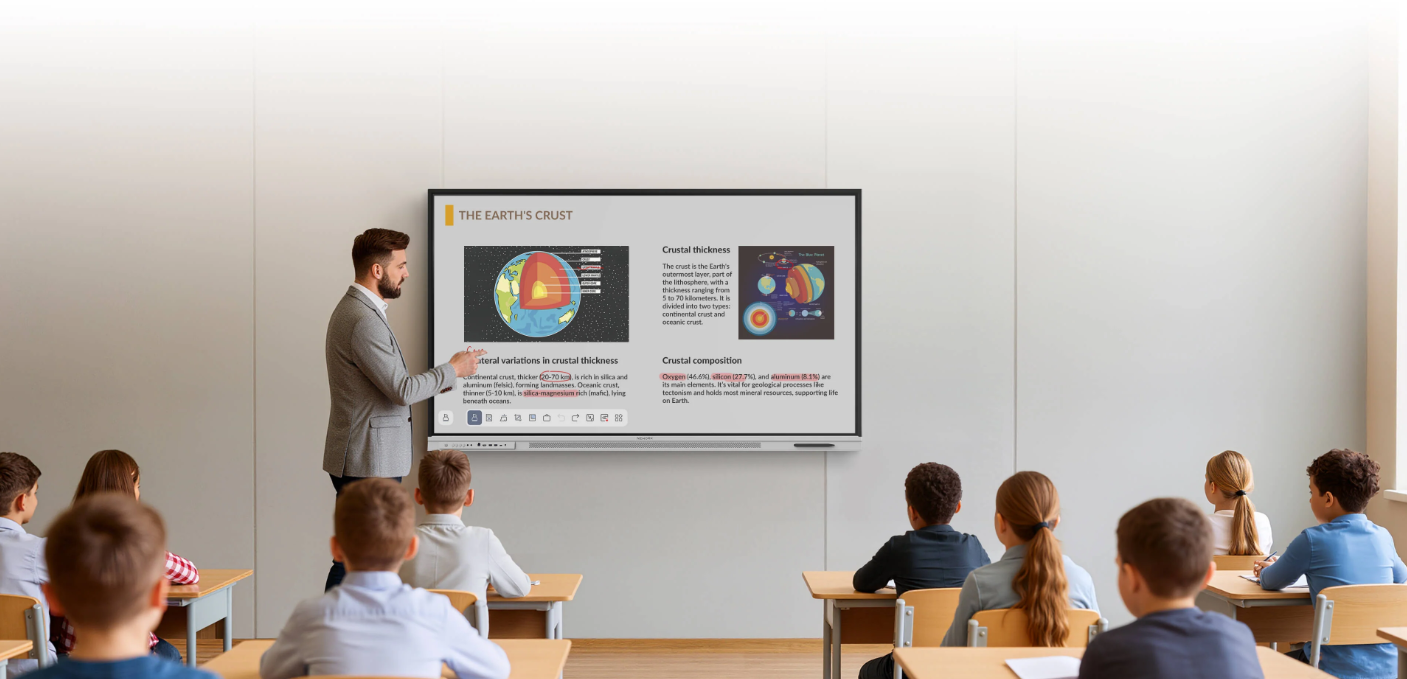
School districts rarely choose interactive displays for a single classroom in isolation. A vendor shortlist needs to reflect curriculum goals, IT policies, staff training, device management, and the way teachers share learning materials. A clear review process helps procurement teams compare products on practical fit rather than on features that may not be used.
Nework develops smart whiteboards for education and collaboration, with a display platform designed around interactive teaching and shared work. District teams reviewing its NewBoard E series for education can visit the company’s website to examine product information alongside their classroom and IT requirements.
Start With Classroom Use Cases
Before comparing vendors, districts should describe how the display will be used during a normal school day. A primary classroom may need quick annotation and visual explanations, while a secondary classroom may rely on presentations, group exercises, and subject-specific apps. These differences help procurement teams separate essential functions from optional ones.
Ask teachers to identify tasks that currently take extra steps. They may need to open lesson files, write over slides, display student work, or save notes for a later class. A shortlist should show how each vendor supports those tasks in a live demonstration, not just on a feature sheet.
Check the Operating System and App Access
The operating system affects app access, updates, and the district’s preferred teaching workflow. The display runs Android 14 with Google EDLA, according to the product information. During evaluation, IT staff should confirm available account options, app access, update arrangements, and compatibility with district policies.
The shortlist should list the software teachers actually use. Procurement teams can test Microsoft Office, Google Workspace, Zoom, and Kahoot!, which are named among the supported services. Staff should confirm that sign-in, content opening, and classroom use work as expected under the district’s network and account settings.
Some schools may require a Windows-based environment for specific desktop applications. Ask whether optional Windows OPS support is available and identify any additional hardware, licensing, or setup required. Keep these needs separate from the standard Android configuration so vendors are compared on the same basis.
Evaluate Interactive Teaching and Sharing
A demonstration should include more than opening a presentation. Teachers can write on the board, move between lesson materials, invite students to contribute, and check whether the interface remains manageable during a busy class. These practical tasks reveal more than a static specification sheet.
Collaborative work also needs a clear process for saving and sharing ideas. The platform includes a built-in whiteboard and supports online whiteboarding apps. District evaluators should test how a session is saved, how notes are shared afterward, and whether colleagues who were not in the room can use the resulting files.
Ask vendors to demonstrate wireless sharing with devices already used by teachers. Check how the connection begins, what happens when a presenter changes, and whether participants can view or contribute without interrupting the lesson. These checks are useful for training sessions and team planning, where several people may contribute in sequence.
Review IT, Privacy, and Support Requirements
A school-district purchase must fit the district’s IT and privacy rules. Request documentation on network requirements, account management, software updates, data handling, and administrative controls. Requirements vary, so IT and privacy staff should review written answers rather than rely on assumptions based on a product description.
Confirm how installation and ongoing support will work. Ask who handles setup, what training materials are provided, how support requests are submitted, and who troubleshoots network or application issues. Record support arrangements in procurement documents instead of relying on informal statements made during a sales call.
Staff adoption deserves attention, too. A technically suitable display can still be underused if common tasks are difficult to learn. Include a short hands-on session with teachers from different grade levels, then collect feedback on navigation, writing, sharing, and lesson preparation. This can guide training after deployment.
Compare the Whole Cost of Ownership
Purchase price is only one part of the decision. Compare the quoted configuration, optional components, installation, staff training, warranty terms, support arrangements, and expected replacement needs. Where vendors quote different bundles, normalize the comparison so a basic package is not placed beside one with extra hardware and services.
Check the number of rooms, expected usage, and rollout schedule before requesting final quotes. A district deploying displays across several schools may need staged delivery and a repeatable installation process. Ask vendors to explain what is included in the quoted scope and which costs depend on local conditions or selected options.
Nework reports that 25,000+ professional teams use its smart whiteboards. District buyers can treat this figure as background information while still requesting a demonstration, checking documentation, and gathering feedback from their own teachers and IT staff.
Make the Shortlist Evidence-Based
A useful vendor shortlist connects each requirement to a practical test. It should cover classroom tasks, app access, operating system, collaboration, IT review, support, and total cost. Score vendors against the same criteria, note unverified claims, and record follow-up questions before making a recommendation.
For teams considering the NewBoard E series for education, the next step is to compare its Android 14 and Google EDLA platform, optional Windows OPS support, and collaboration functions against district needs. A structured review gives procurement staff a defensible basis for discussion and helps schools select equipment that fits their teaching practices and technical environment.
